

- Configure chat and calling features
- Apply theming and layout options
- Export React Native-ready code via QR code scanning
What You Can Configure
Toggle these features on or off directly in the UI Kit Builder. For a full reference of each setting, see UI Kit Builder Settings.Chat Features
Call Features
Layout
Theming
How to Use UI Kit Builder
1. Design
Configure your chat layout, toggle features, and pick a theme using the UI Kit Builder.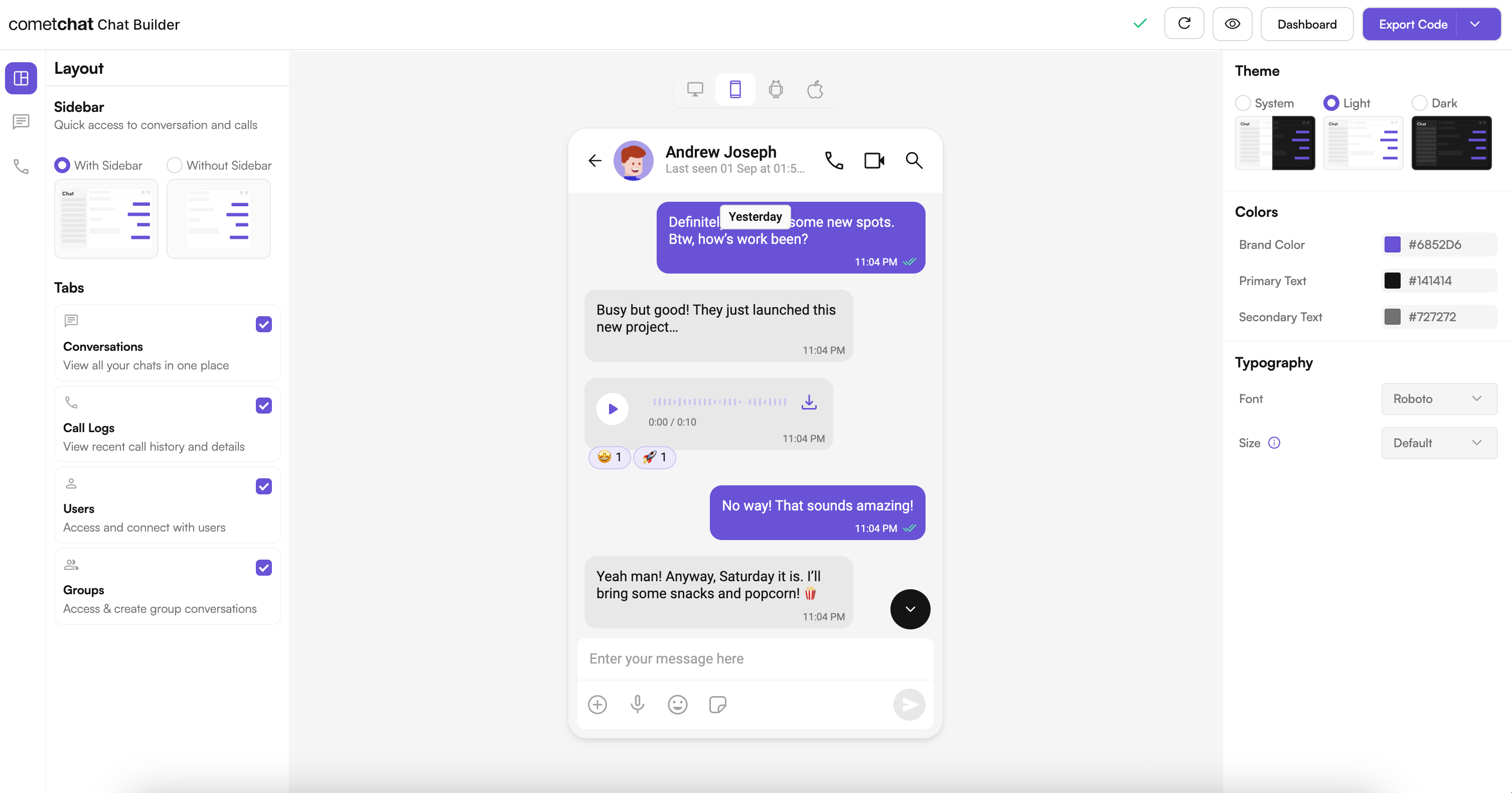
2. Export
Scan a QR code or export the configuration JSON to apply your settings to your React Native app.3. Integrate
Drop the configuration into your React Native project, add your CometChat credentials, and run the app. See the Integration Guide for full steps.Try It Locally
React Native Builder Source
Clone the sample, run it on iOS/Android, and experiment with QR-based configurations.
Next Steps
Integration
Step-by-step guide to integrate the UI Kit Builder.
Builder Settings
Understand the settings file and feature toggles.
Customizations
Adjust component props, behavior, and UI elements.
Directory Structure
See how the exported code is organized.
Helpful Resources
React Native UI Kit Docs
Official UI Kit documentation with component APIs, theming, and guides.
Support Portal
Reach CometChat support for troubleshooting and production issues.
Community & Issues
File bugs, request features, or learn from community fixes.
Need Help?
- Developer Community: https://community.cometchat.com/
- Dashboard & Live Support: https://app.cometchat.com
- UI Kit questions: https://www.cometchat.com/docs/ui-kit/react-native/5.0/getting-started