

Lists are reusable. Create a list once and use it across multiple rules. Update the list in one place and all rules using it are automatically updated.
Quick Start
Create a custom keyword list in under 2 minutes:1
Open Lists Settings
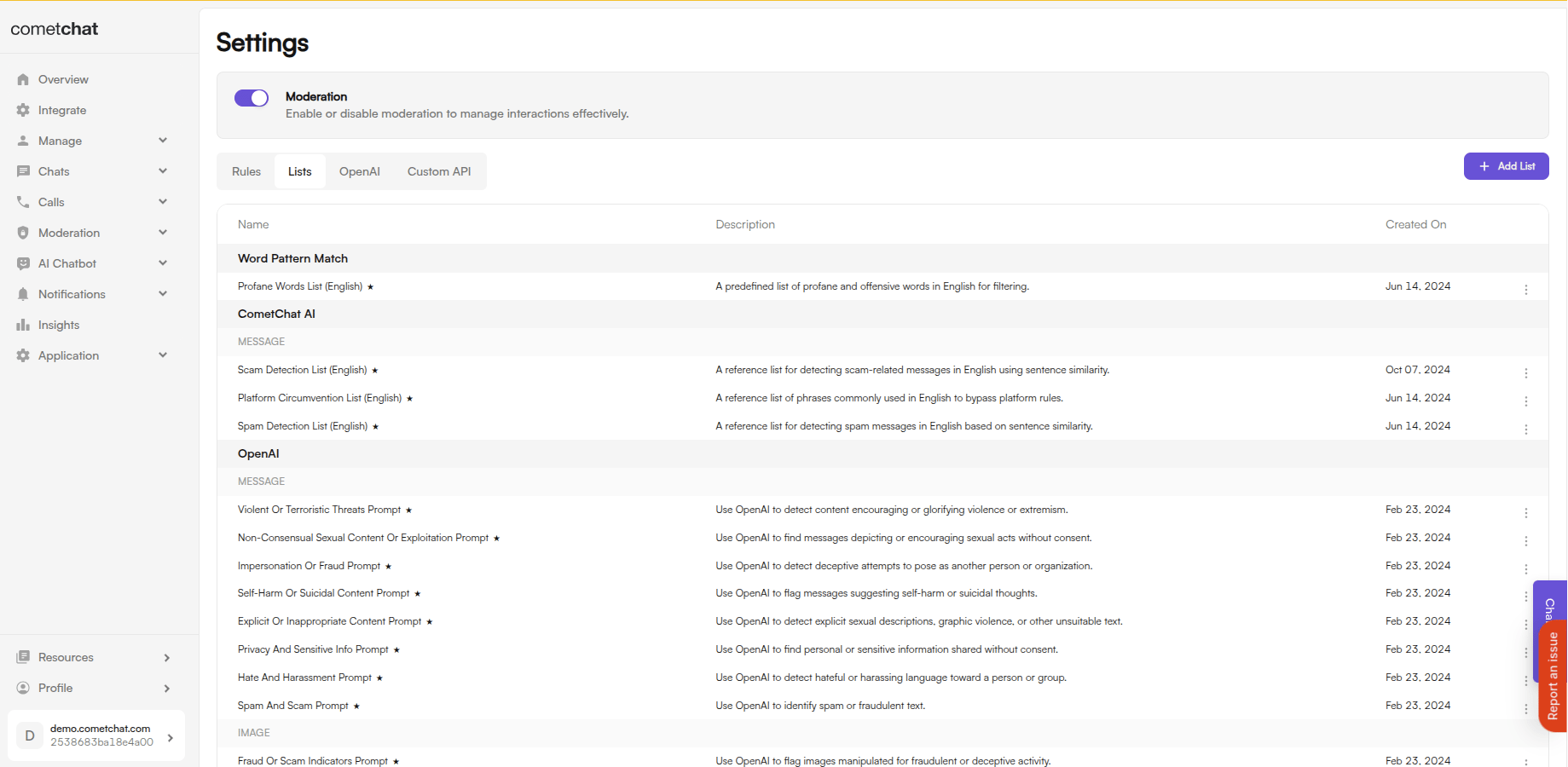
Login to CometChat Dashboard → Select your app → Moderation → Settings → Lists
2
Create a New List
Click Add → Enter a name, select category (word/pattern/sentence), and add your terms
3
Use in a Rule
Go to Rules → Create or edit a rule → Select your list in the Conditions section
List Types
- Keywords
- Patterns (Regex)
- Sentence Similarity
Simple word matching. Use for:
- Profanity and offensive terms
- Brand names or competitors
- Industry-specific blocked terms
Entry format at a glance
If you paste comma-separated values into a Patterns or Sentence Similarity list, the entire string is stored as a single entry and will not match as expected.
Default Lists Summary
Pre-configured lists ready to use with your rules:- Text Moderation
- Image Moderation
When to Create Custom Lists
Industry-Specific Terms
Industry-Specific Terms
Add terms specific to your industry that default lists don’t cover:
- Gaming: Game-specific slurs, exploit terms
- Finance: Competitor names, prohibited investment terms
- Healthcare: Medical misinformation terms
Brand Protection
Brand Protection
Block mentions of:
- Competitor names
- Prohibited external links
- Trademark violations
Regional/Language Variations
Regional/Language Variations
Add localized profanity or slang that default English lists miss.
Platform-Specific Rules
Platform-Specific Rules
Create lists for your unique community guidelines:
- Prohibited topics
- Off-platform contact attempts
- Community-specific terms
Best Practices
Tips for Effective Lists
- Keep lists focused - Create separate lists for different purposes (profanity vs. spam vs. competitors)
- Use CSV for bulk imports - Upload large keyword lists via CSV instead of manual entry
- Combine list types - Use keywords for exact matches + sentence similarity for variations
- Document your lists - Add clear descriptions so team members understand each list’s purpose
Managing Lists
Create List
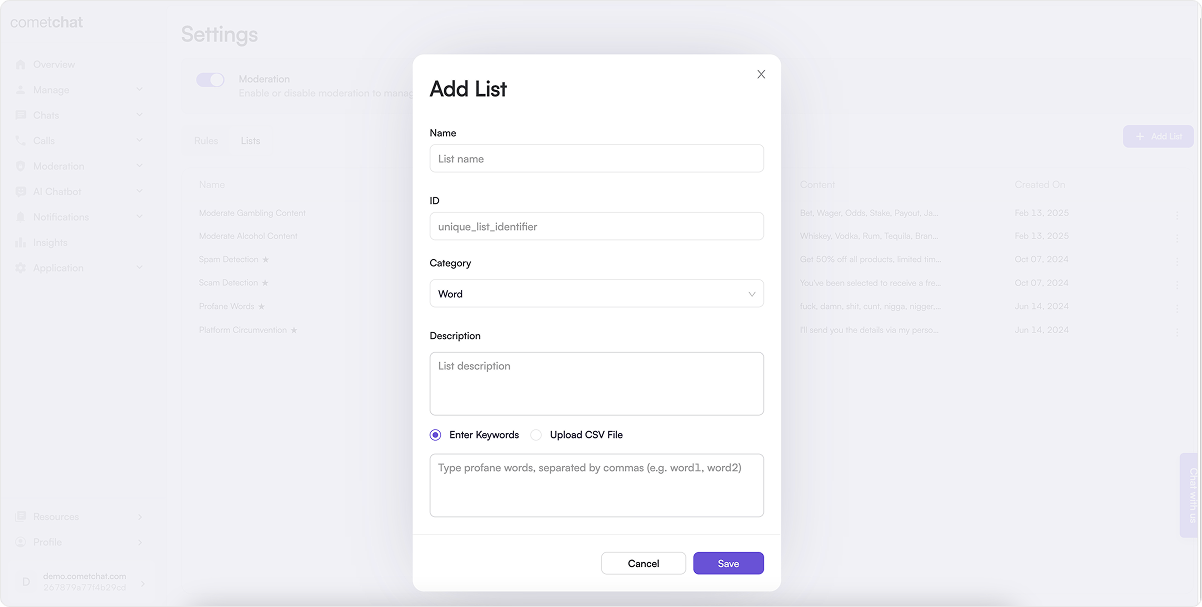
- Click Add in the Lists tab
- Configure:
- Name: Descriptive name for the list
- ID: Unique identifier
- Category: Word, Pattern, or Sentence Similarity
- Description: Purpose of the list
- Source: Enter terms manually or upload CSV. Format depends on the category:
- Word: comma-separated entries.
- Pattern and Sentence Similarity: one entry per line (newline-separated).
- Click Save
List All Lists
All configured lists are displayed in the Lists tab with their name, category, and item count.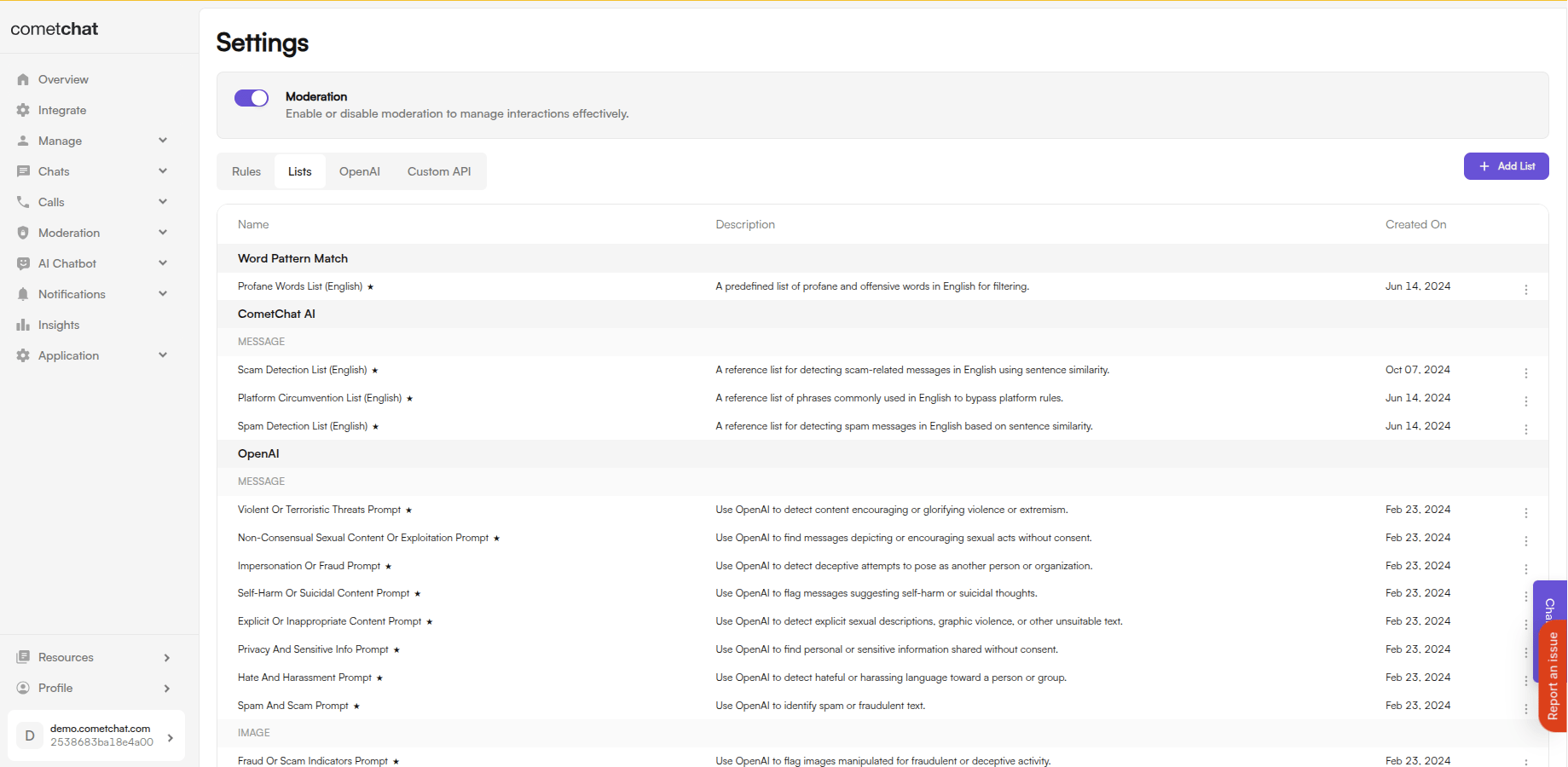
Update List
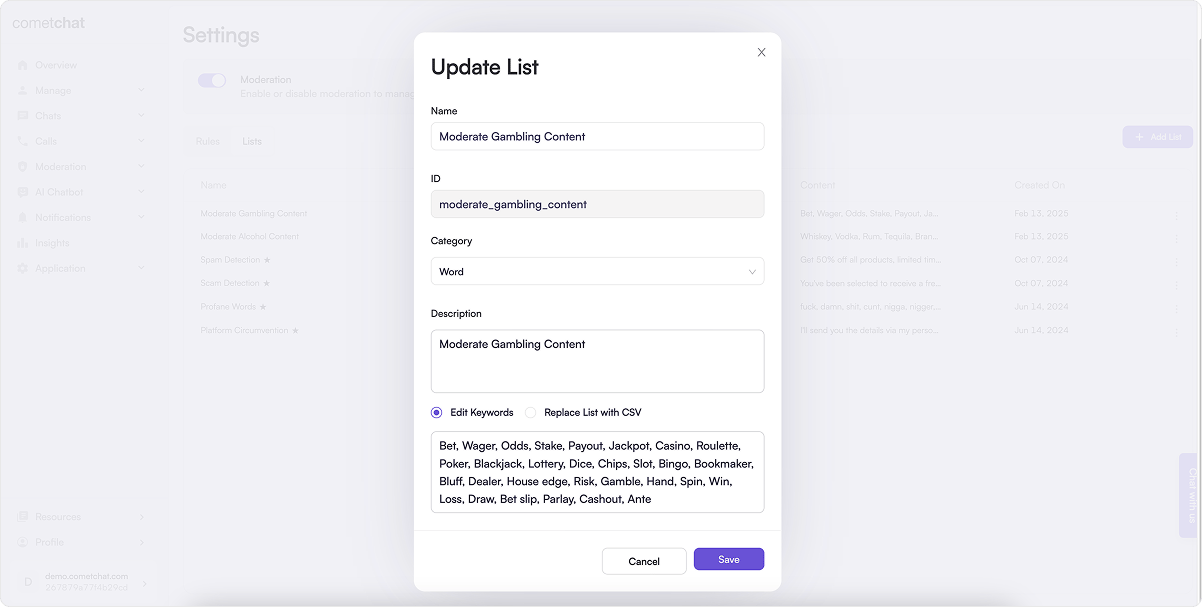
- Click Edit in the action menu
- Modify the list settings or add/remove terms
- Click Save
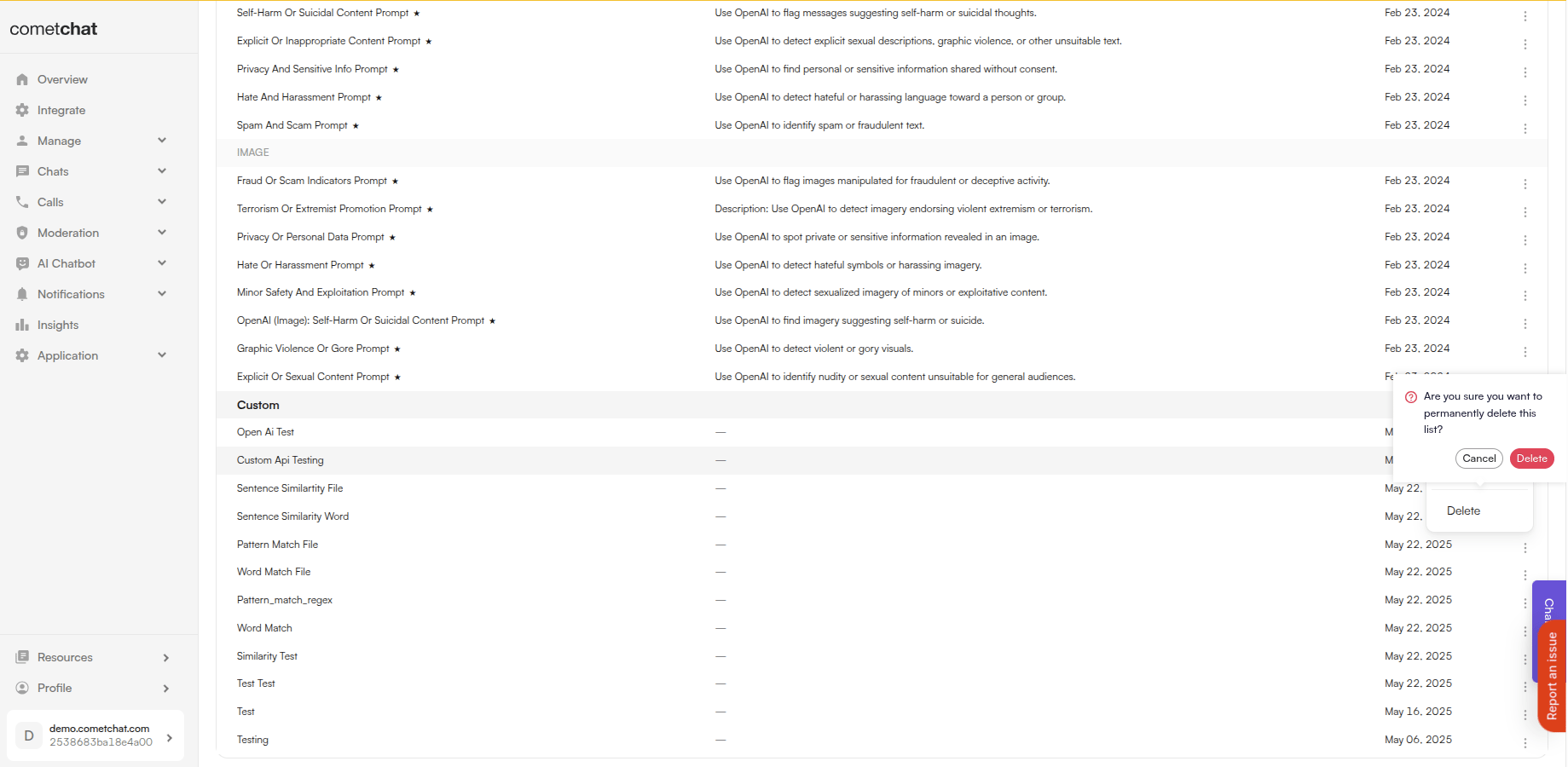
Delete List
Related Resources
Rules Management
Create rules that use your lists
Blocked Messages
View content blocked by your lists
Flagged Messages
Review flagged content
Moderation Overview
Learn about the moderation system