

AI Agent Component Spec
AI Agent Component Spec
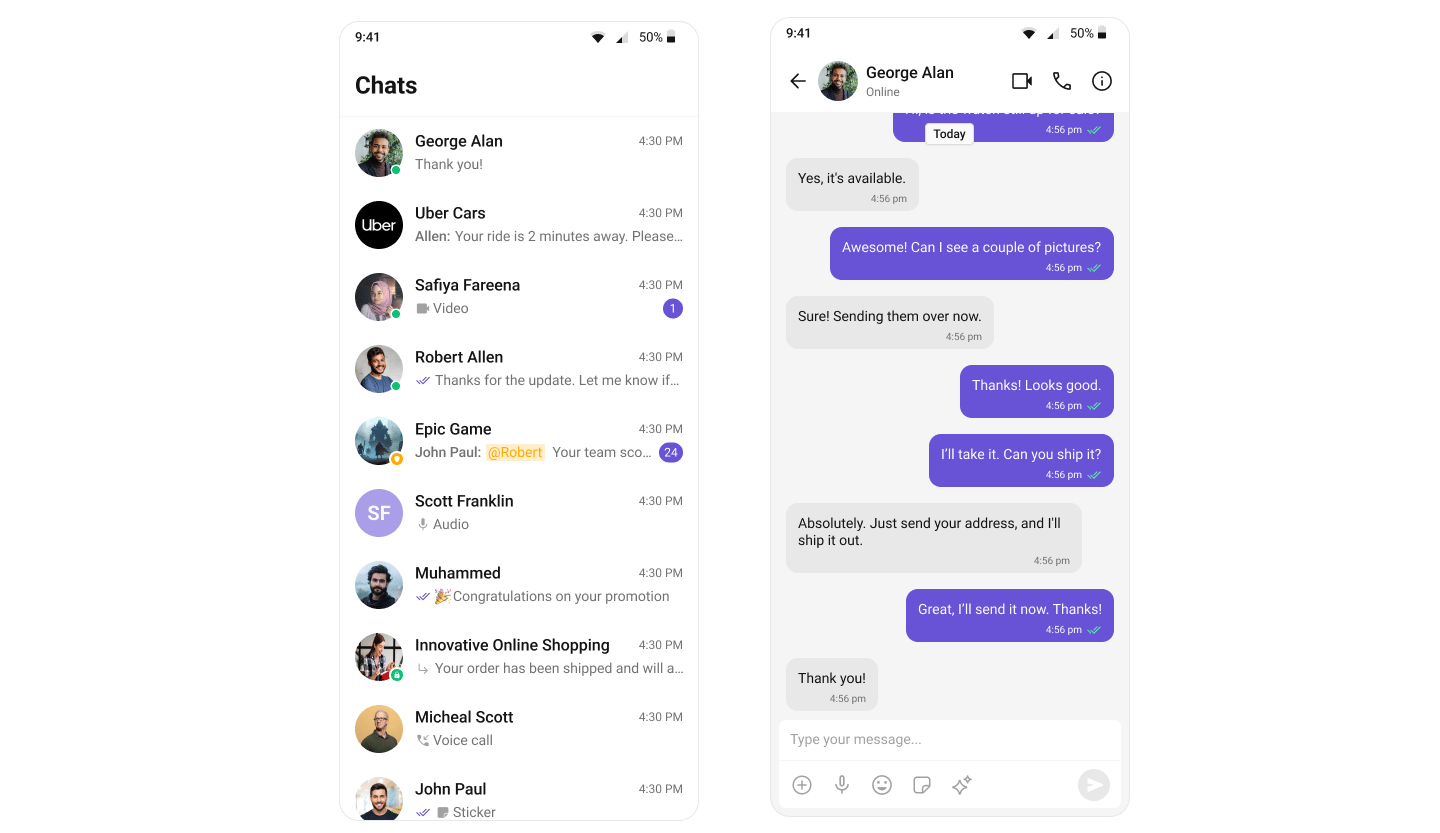
What You’re Building
Two screens working together:- Conversation list — shows all active conversations (users and groups)
- Message screen — header + messages + composer for the selected conversation
Step 1 — Create the Conversations Screen
TheCometChatConversations widget displays all conversations. Tapping one navigates to the message screen.
lib/conversations_page.dart
onItemTapfires when a conversation is tapped, passing theConversationobject.conversationWithreturns either aUserorGroup— pass the correct one to the message screen.
Step 2 — Create the Messages Screen
The message screen combines header, message list, and composer.lib/messages_screen.dart
Step 3 — Run the App
Next Steps
Conversations
Customize the conversation list
Message List
Customize the message view
Theming
Customize colors and styles
Events
Handle real-time events