

AI Agent Component Spec
AI Agent Component Spec
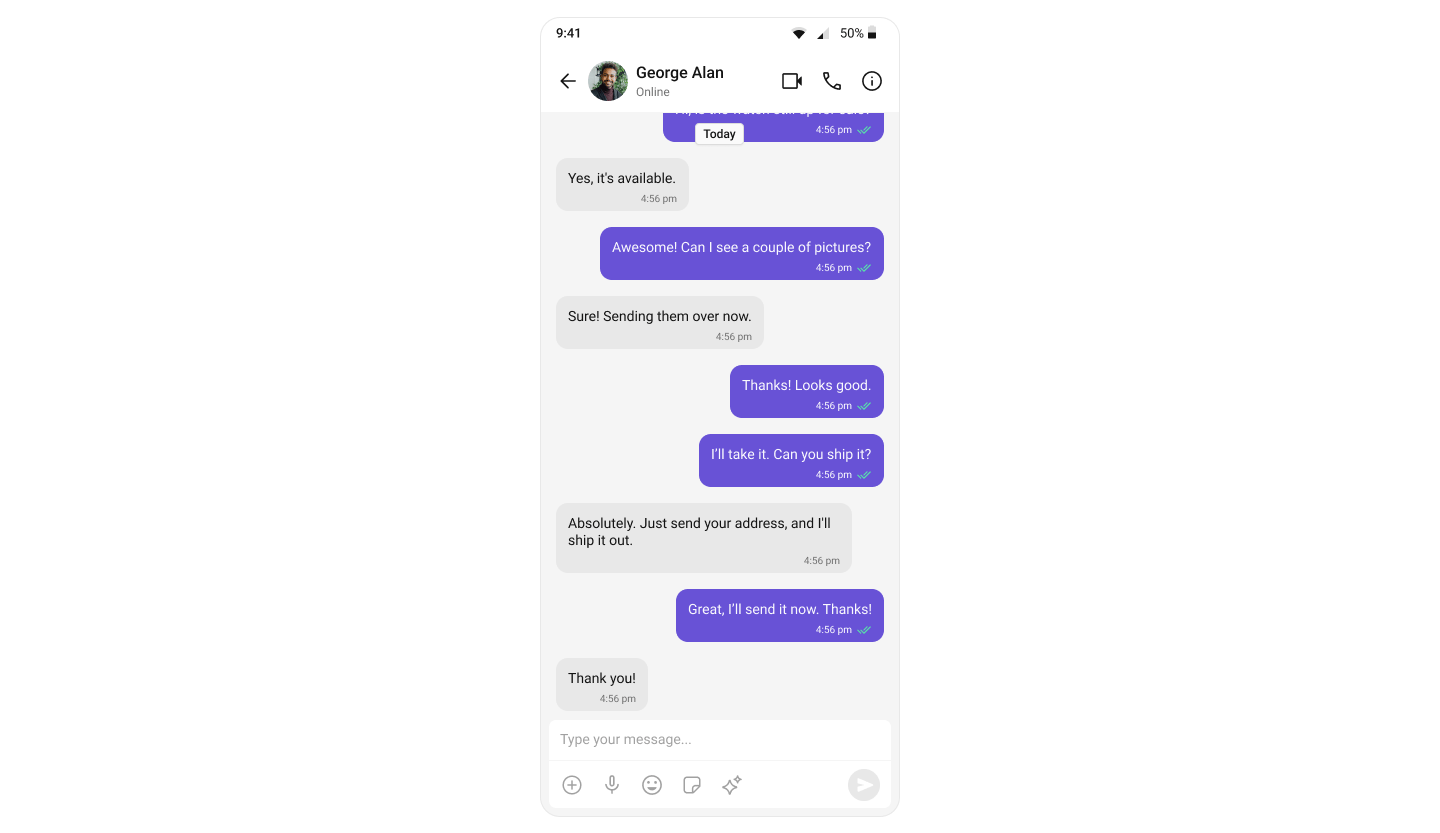
What You’re Building
Three components stacked vertically:- Chat header — displays recipient name, avatar, and call buttons
- Message list — real-time chat history
- Message composer — text input with media and emojis
Step 1 — Create the Chat Screen
The app fetches a user on mount and renders the message components.lib/chat_screen.dart
CometChat.getUser(uid)fetches the user object — you need a real user object, not a manually constructed one.- Pass either
userorgroupto the message components, never both.
Switching to Group Chat
To load a group chat instead, useCometChat.getGroup():
Step 2 — Run the App
Next Steps
Message List
Customize the message view
Conversations
Add a conversation list
Theming
Customize colors and styles
Events
Handle real-time events