

AI Integration Quick Reference
AI Integration Quick Reference
- AI Assistant Chat History
- Chat History Management
- Contextual Responses
- Agent Detection
- Seamless Handoffs
1:1 conversations only. AI Agents currently respond only in one-on-one conversations between an end user and the agent user. They do not respond to messages sent in groups, even if the agent user is added as a member or owner. Group support is on the roadmap — share your use case on feedback.cometchat.com.
Overview
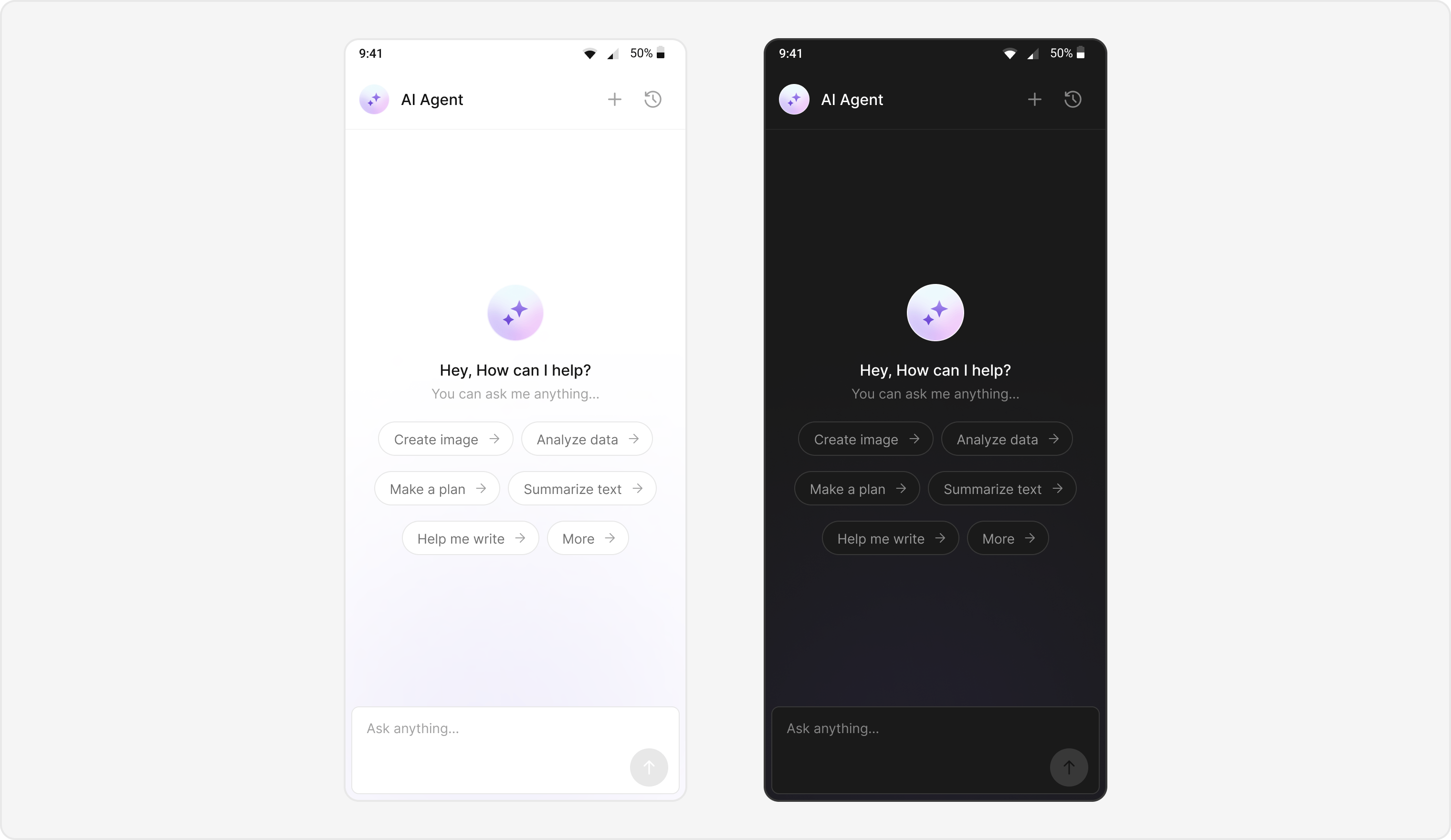
Users can interact with AI agents through a dedicated chat interface that:- Provides intelligent responses based on conversation context.
- Maintains chat history for continuity.
- Seamlessly integrates with your existing user chat system.
Prerequisites
- Android Studio project with cometchat/cometchat-uikit-android and cometchat/chat-sdk-android in
build.gradle. - Internet permission in
AndroidManifest.xml. - Valid CometChat App ID, Region, and Auth Key configured via
UIKitSettings. - User logged in with
CometChatUIKit.login(). - AI Agent configured in your CometChat dashboard.
Components
Integration Steps
Step 1 - Activity Setup
Create the AI Assistant chat activity with proper theme and layout configuration.- Kotlin
- Java
AIAssistantChatActivity.kt
Step - 2 AIAssistantChatActivity layout:
AddCometChatMessageHeader, CometChatMessageList, and CometChatMessageComposer to your layout to enable a complete AI chat interface. Use the sample XML below as a reference for correct integration.
activity_ai_assistant_chat.xml
Step 3 - Style of Message List & Composer
Define custom styles for the message list and composer to differentiate AI agent chats.Step 4 - Initialize click listeners
Initialize click listeners of message header to handle new chat creation and chat history access.- Kotlin
- Java
Step 5 - Create an activity for AIAssistantChatHistory component.
Create a new activity to hostCometChatAIAssistantChatHistory component and handle its interactions.
- Kotlin
- Java
Step 6 - AIAssistantChatActivity layout:
AddCometChatAIAssistantChatHistory to your layout to enable access to AI chat history. Use the sample XML below as a reference for correct integration.
Step 7 - Launching AI Chat
Create intent and start AI Assistant chat from your main application.- Kotlin
- Java
Implementation Flow Summary
Customization Options
- Custom AI Assistant Empty Chat View: Customize the empty state view using
setAIAssistantEmptyChatGreetingView()method. - Streaming Speed: Adjust AI response streaming speed via
setStreamingSpeed()method. - AI Assistant Suggested Messages: Create custom list of suggested messages and set quick prompts using
setAIAssistantSuggestedMessages()method. - AI Assistant Tools: Set tools for the AI agent using
setAIAssistantTools()method.
Feature Matrix
Android AI Builder Sample
Explore this feature in the CometChat AI Builder:
GitHub → AI Builder
Android Sample App (Java)
Explore this feature in the CometChat SampleApp:
GitHub → SampleApp