Overview
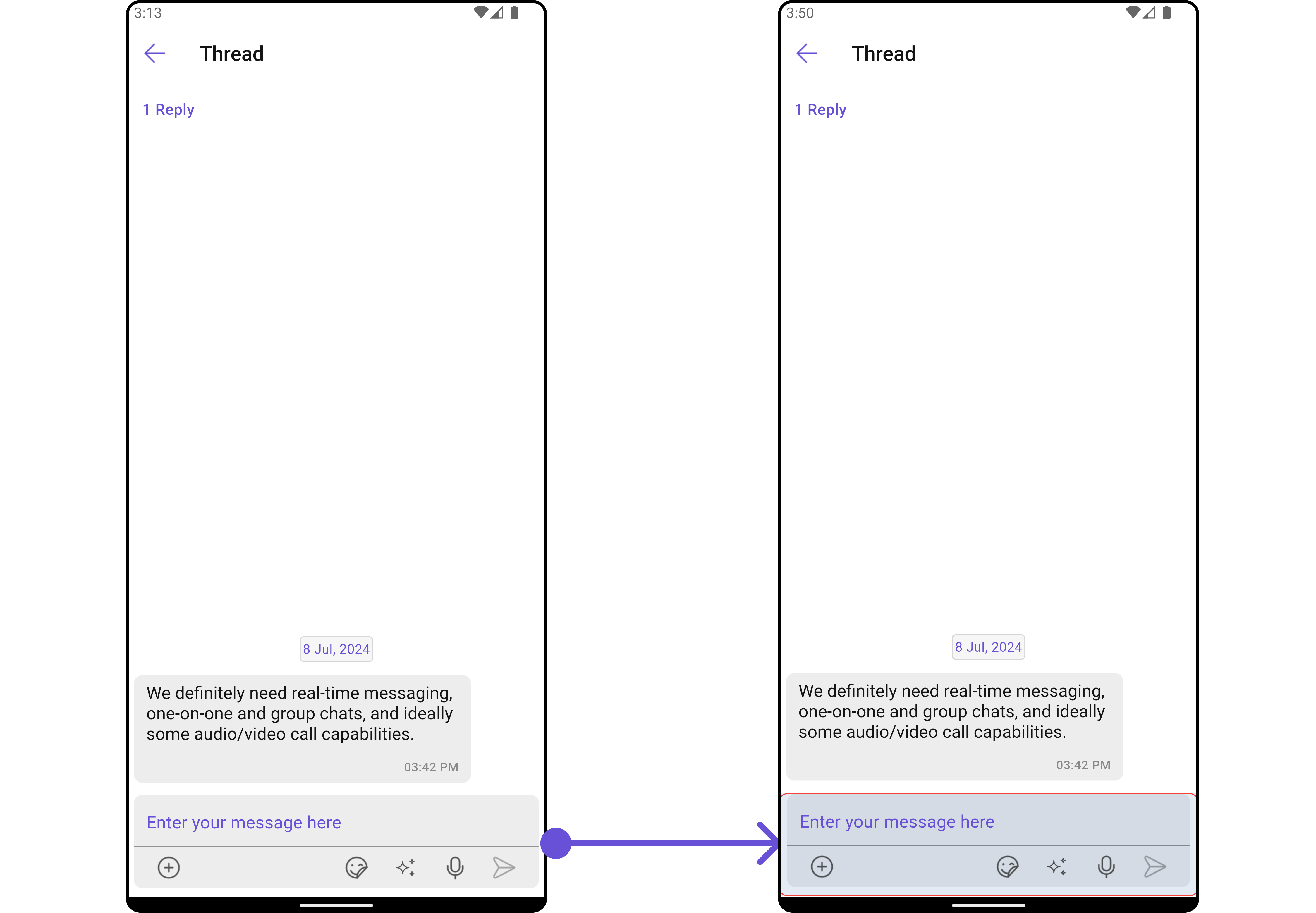
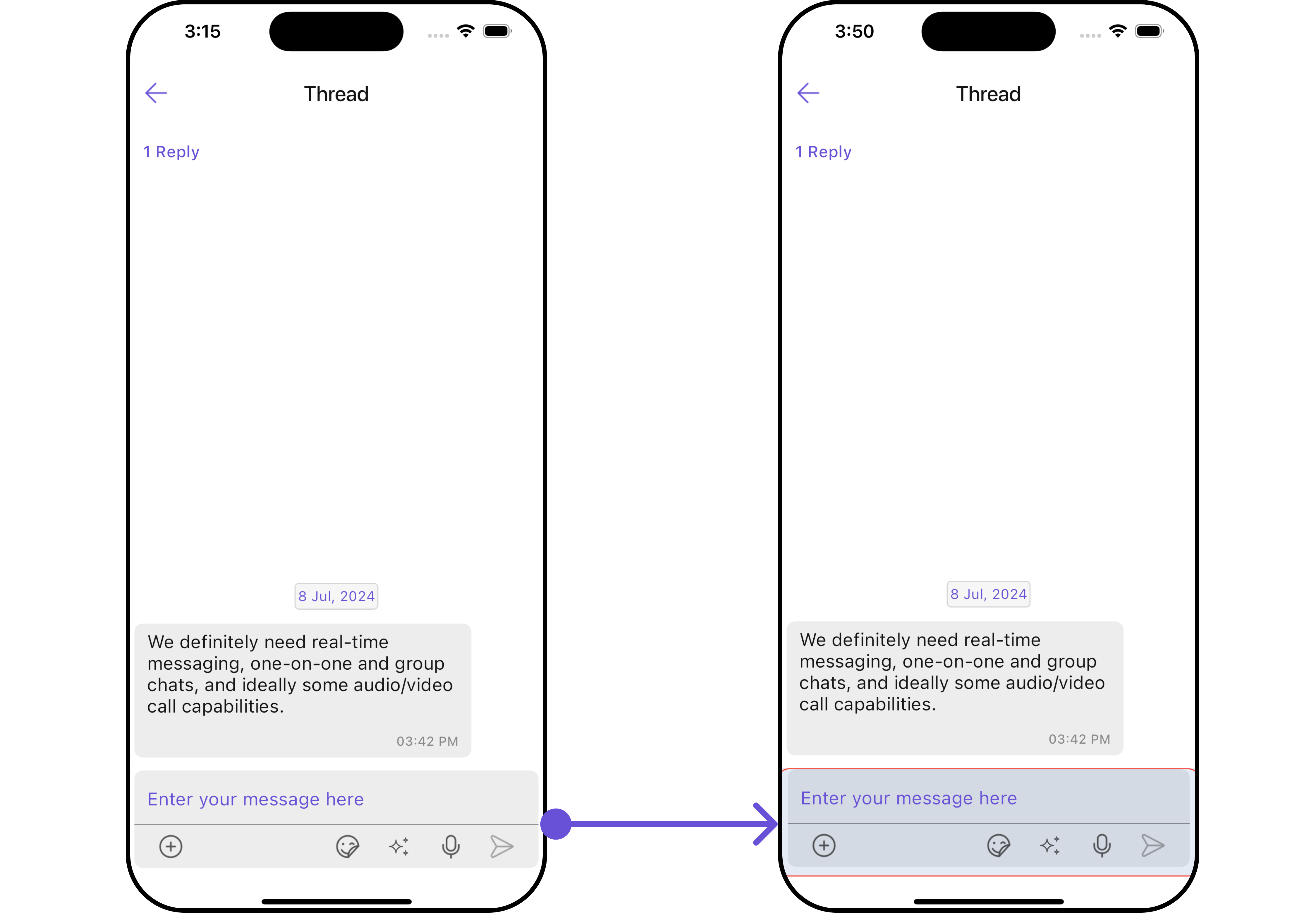
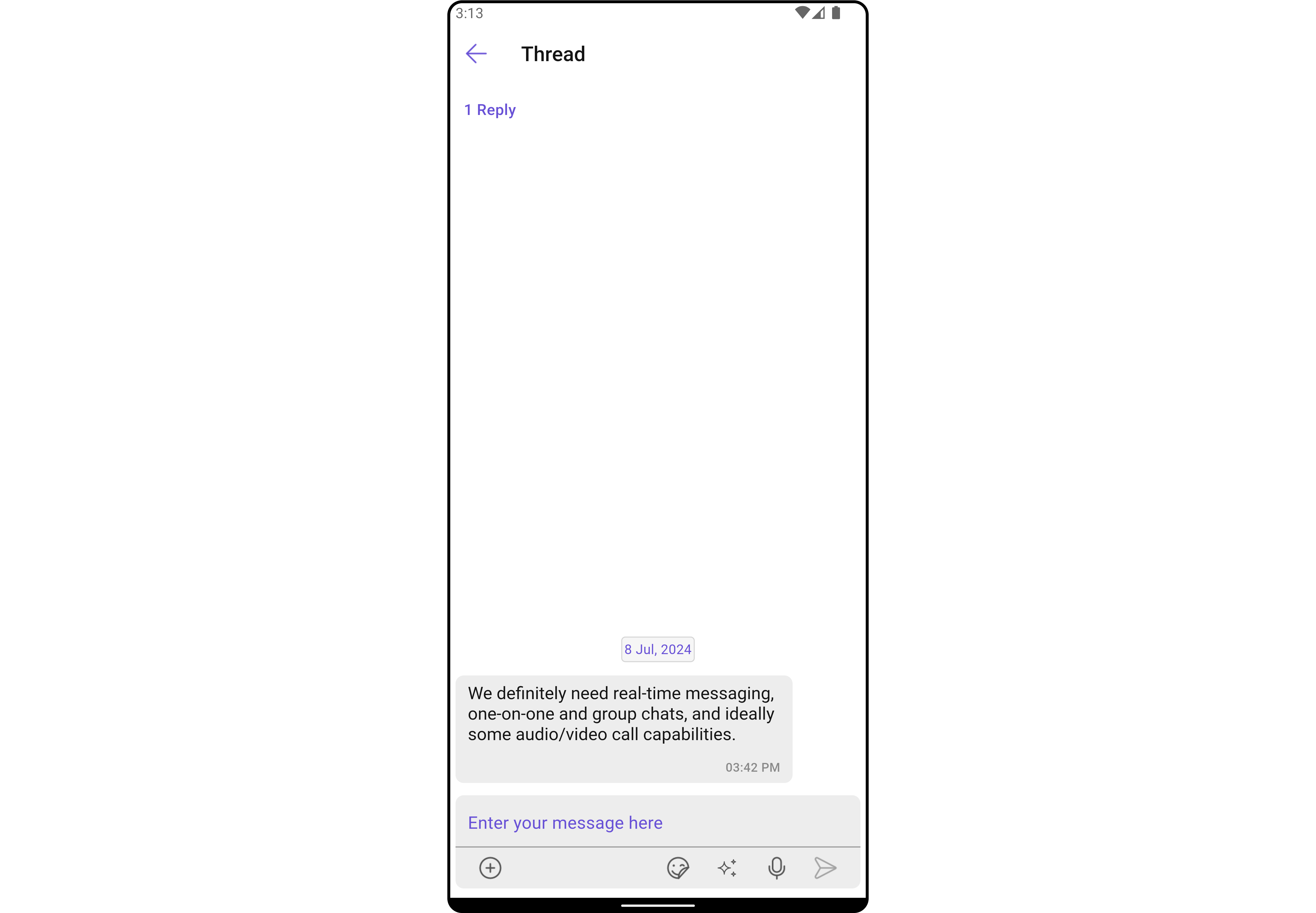
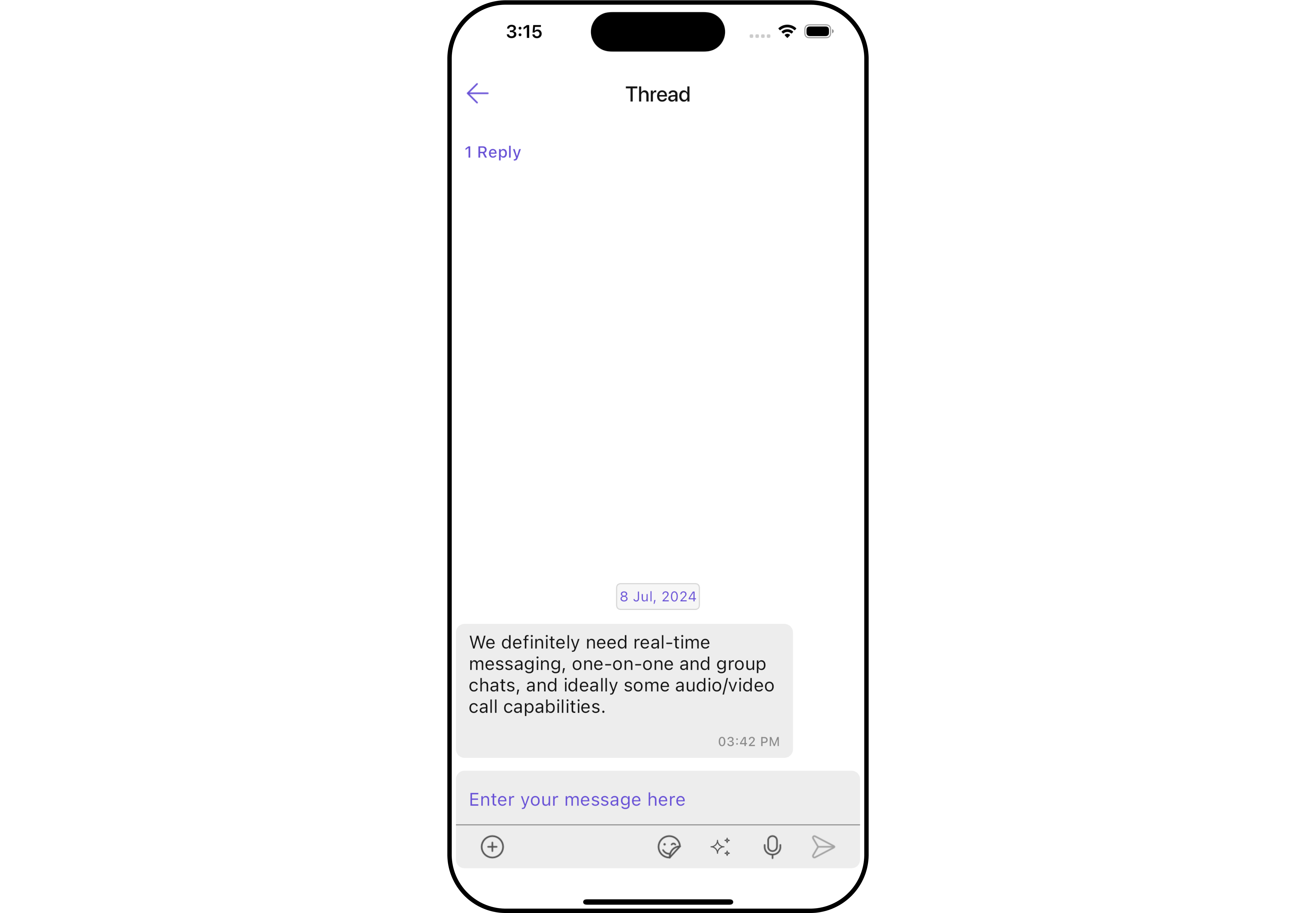
ThreadedMessages is a Composite Widget that displays all replies made to a particular message in a conversation. By default, the parent message will be displayed at the top, the message composer will be at the bottom and between them a message list will contain all replies.- Android
- iOS
Usage
Integration
You can launchCometChatThreadedMessages directly using Navigator.push, or you can define it as a widget within the build method of your State class.
1. Using Navigator to Launch CometChatThreadedMessages
- Dart
2. Embedding CometChatThreadedMessages as a Widget in the build Method
- Dart
Actions
Actions dictate how a widget functions. They are divided into two types: Predefined and User-defined. You can override either type, allowing you to tailor the behavior of the widget to fit your specific needs. ThreadedMessages does not have its own actions. However, you can override the behavior of the ThreadedMessages widget by using the actions of its widgets, with the help of Configurations. Example In this example, we are overriding theonThreadReplyClick of the MessageList Widget using MessageListConfiguration and applying it to ThreadedMessages.
- Dart
Filters
Filters allow you to customize the data displayed in a list within a Widget. You can filter the list based on your specific criteria, allowing for a more customized. Filters can be applied using RequestBuilders of Chat SDK. ThreadedMessages does not have its own Filters. However, you can filter the messages list in ThreadedMessages Widget using MessageListConfiguration. Example In this example, we are filtering messages based on theParentMessageID and searching for messages that contain the keyword “payment”.
- Dart
Events
Events are emitted by aWidget. By using event you can extend existing functionality. Being global events, they can be applied in Multiple Locations and are capable of being Added or Removed.
The MessageList Widget does not emit any events of its own.
Customization
To fit your app’s design requirements, you can customize the appearance of the conversation widget. We provide exposed methods that allow you to modify the experience and behavior according to your specific needs.Style
Using Style you can customize the look and feel of the widget in your app, These parameters typically control elements such as the color, size, shape, and fonts used within the widget.1. ThreadedMessage Style
To modify the styling, you can apply the ThreadedMessageStyle to the ThreadedMessage Widget using thesetStyle method.
- Dart
- Android
- iOS
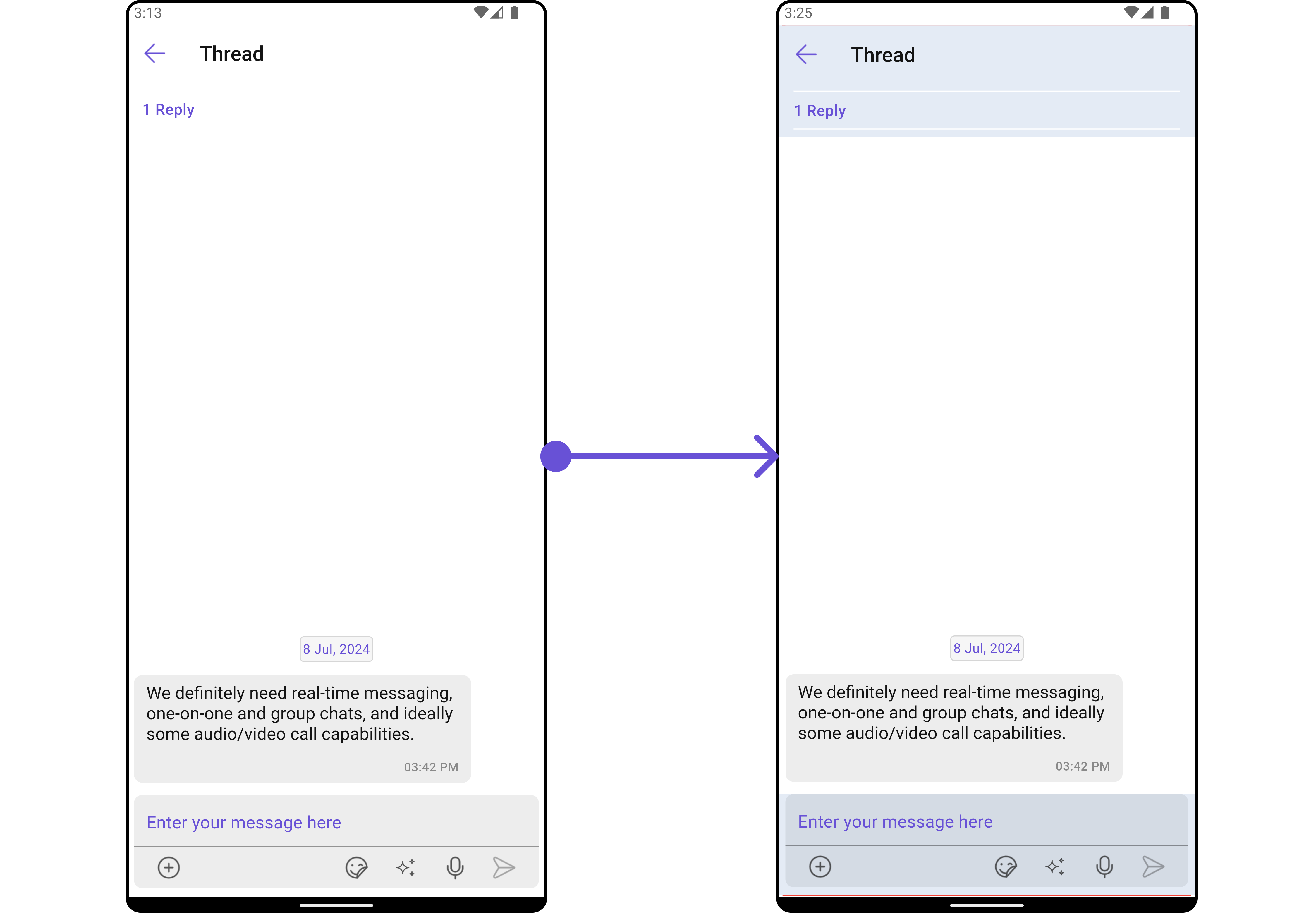
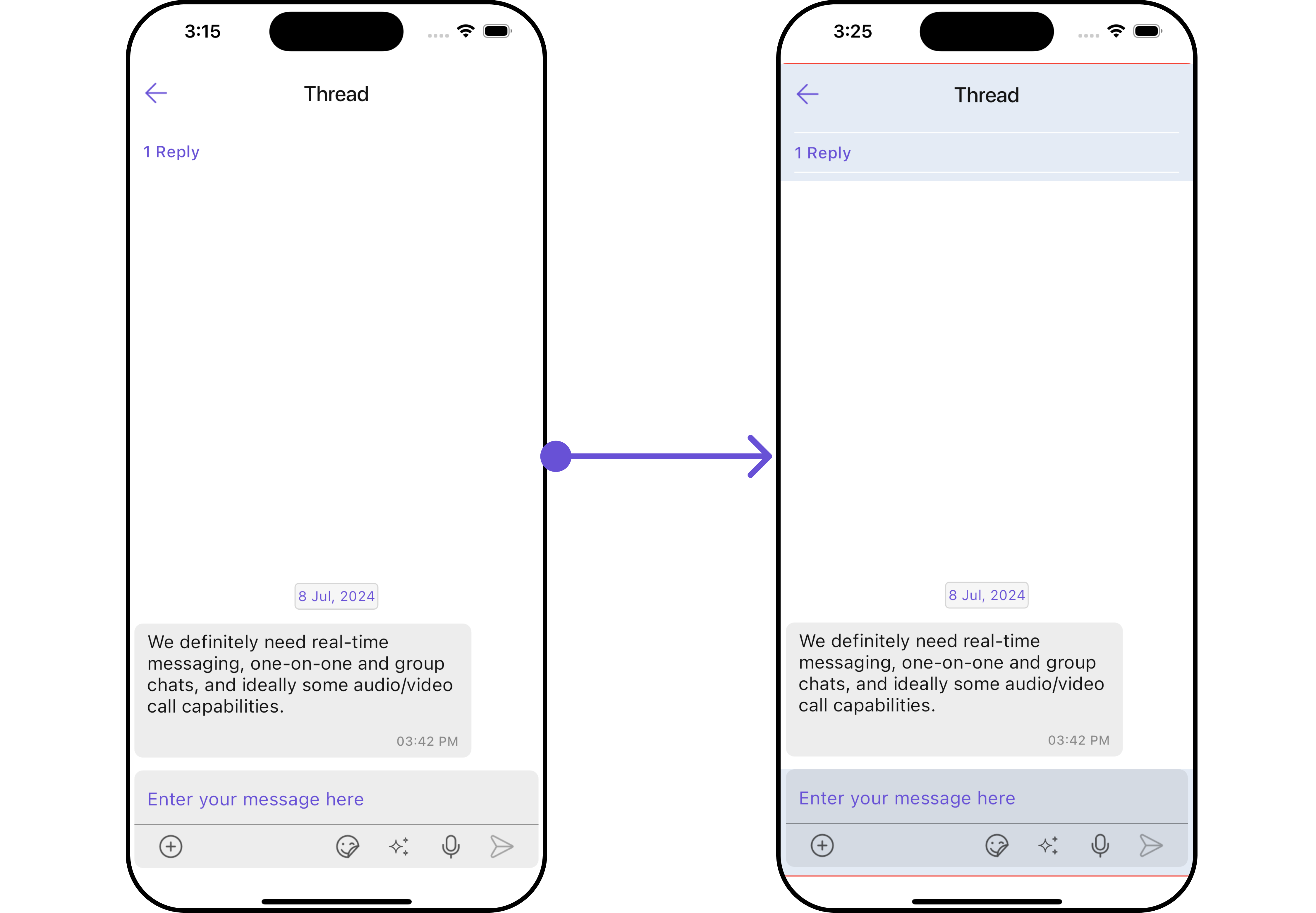
ThreadedMessagesStyle:
Functionality
These are a set of small functional customizations that allow you to fine-tune the overall experience of the widget. With these, you can change text, set custom icons, and toggle the visibility of UI elements.- Dart
- Android
- iOS
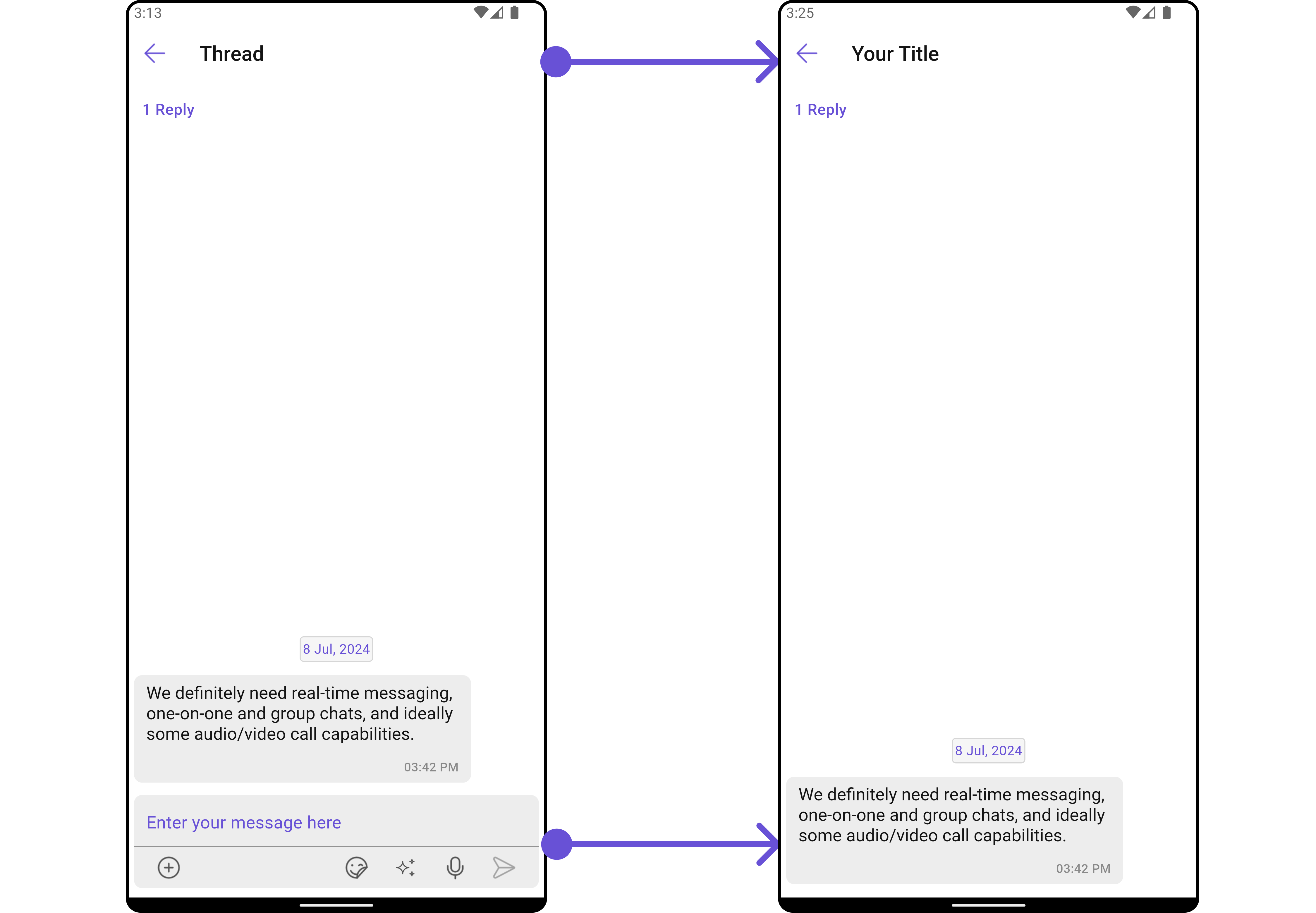
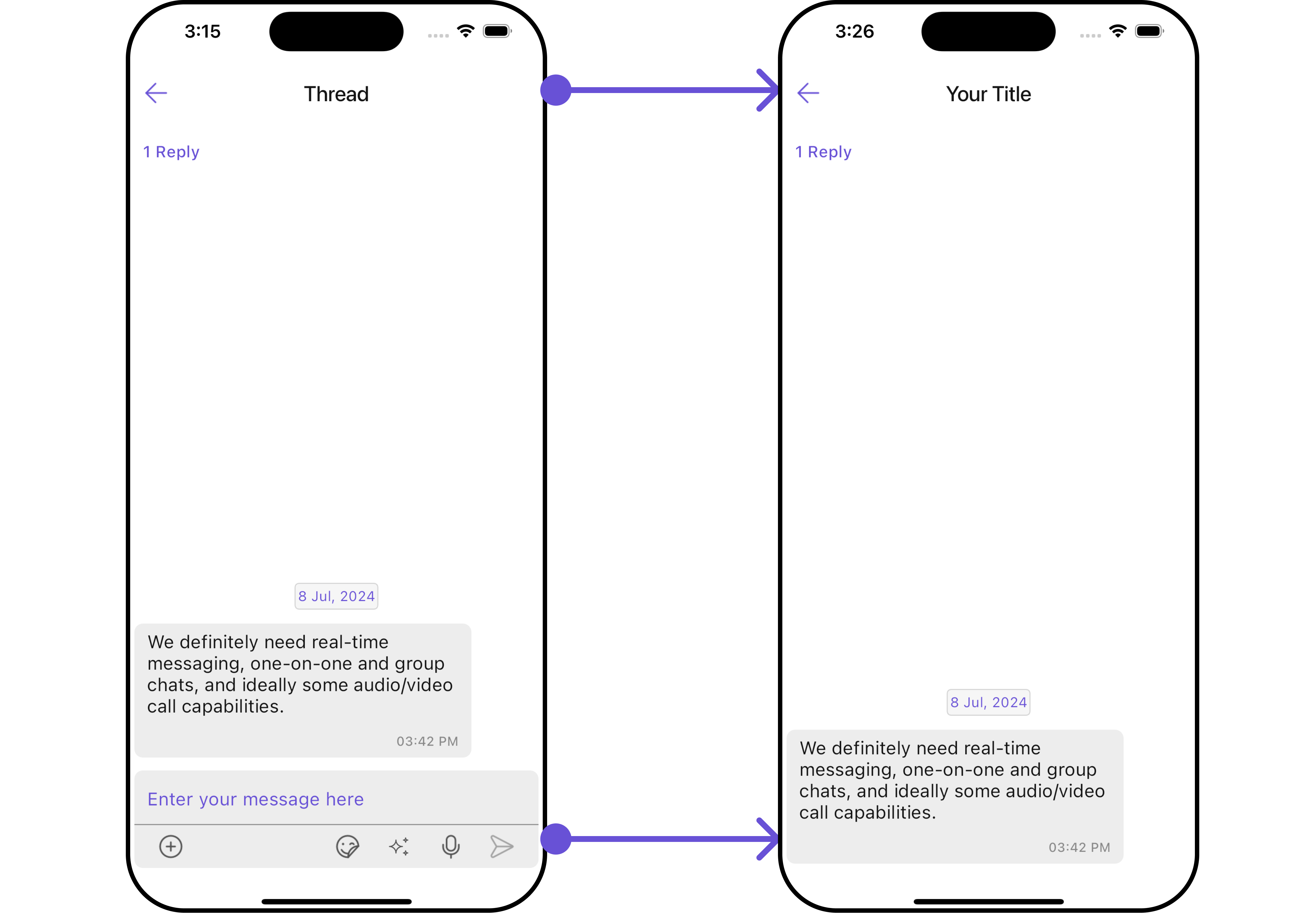
Advanced
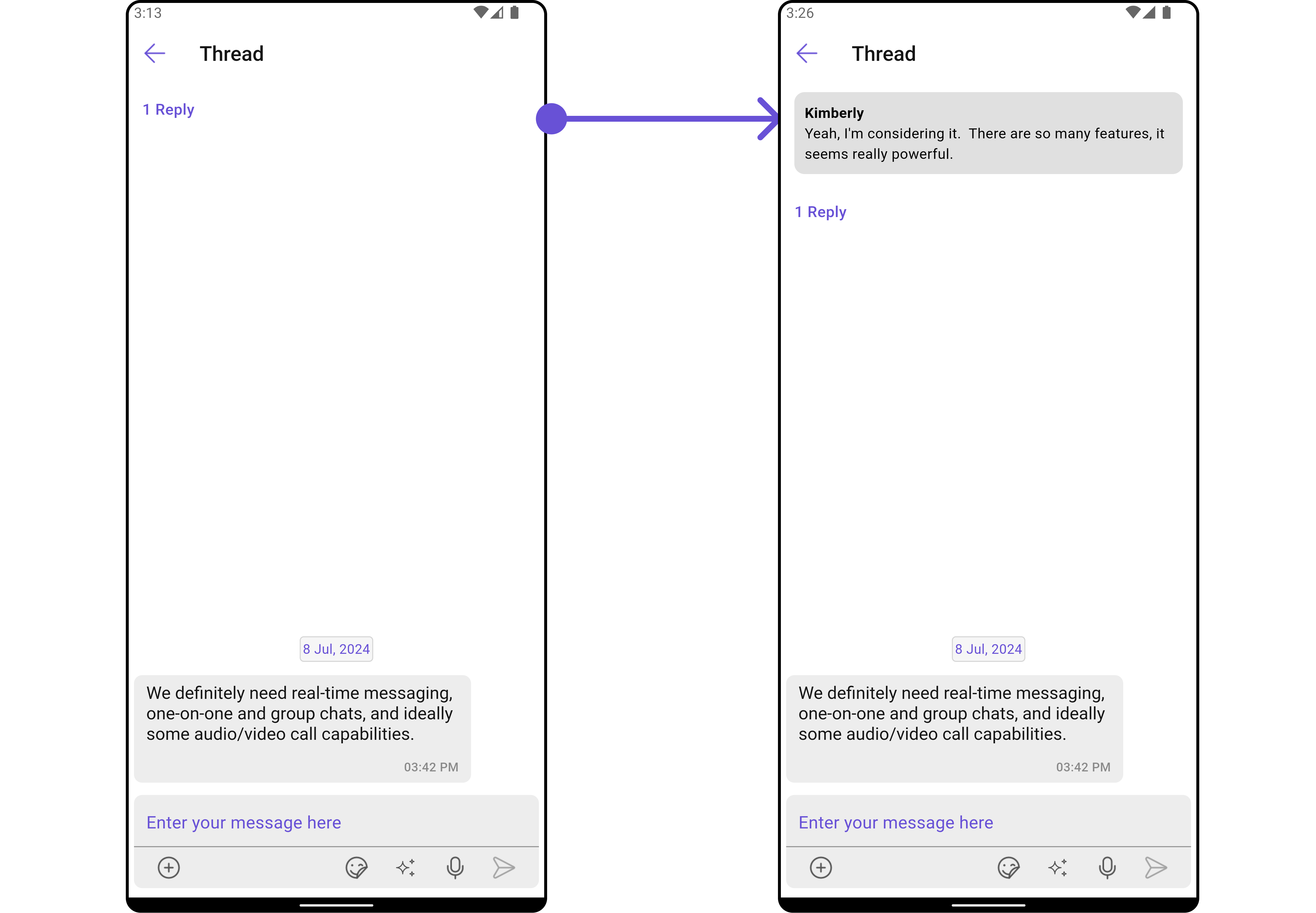
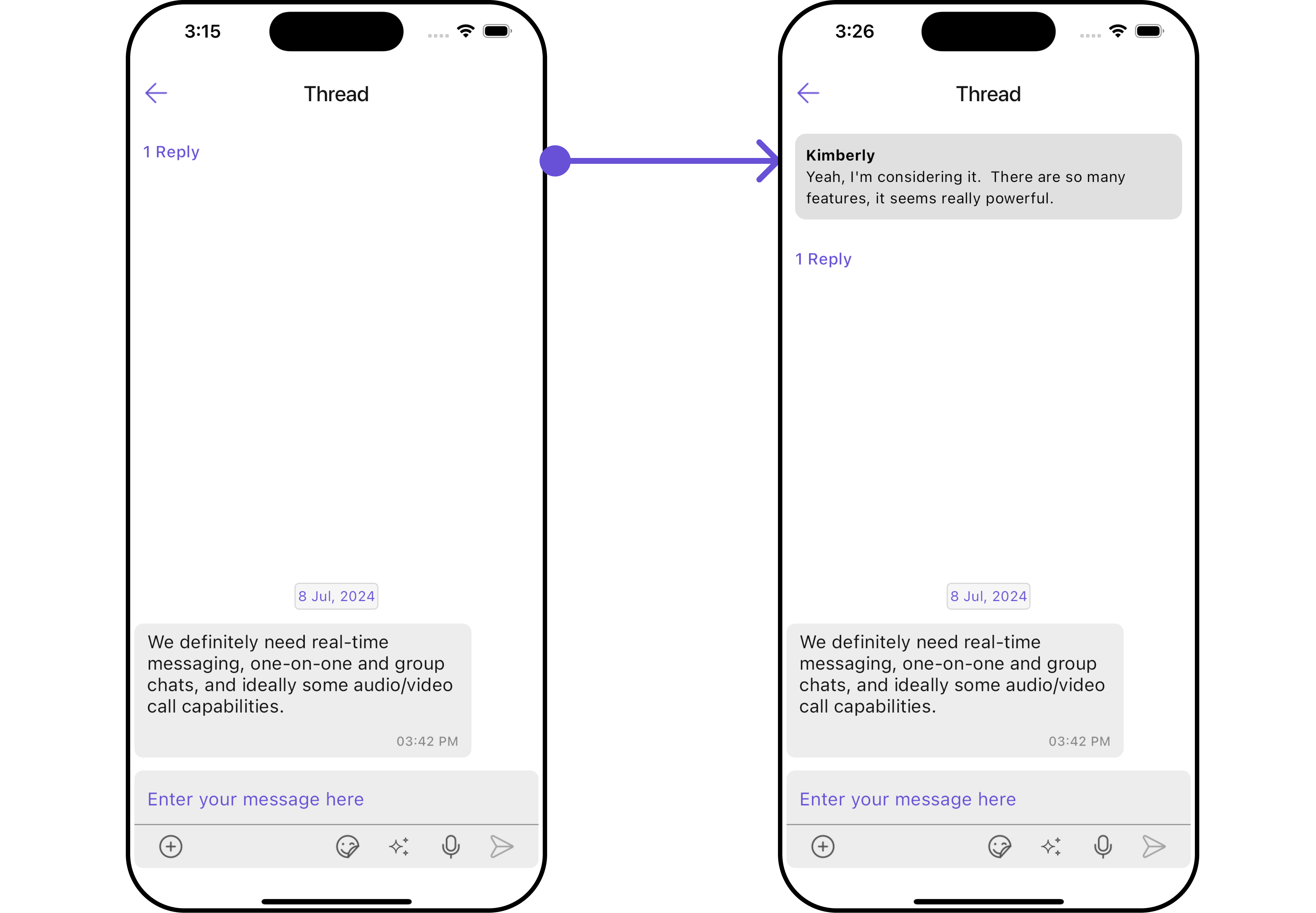
For advanced-level customization, you can set custom widgets to the widget. This lets you tailor each aspect of the widget to fit your exact needs and application aesthetics. You can create and define your widgets, layouts, and UI elements and then incorporate those into the widget.MessageBubbleView
By usingbubbleView, You can set parent message buggle widget inside CometChatThreadedMessages Widget.
Example
Here is the complete example for reference:
- Dart
- Android
- iOS
MessageActionView
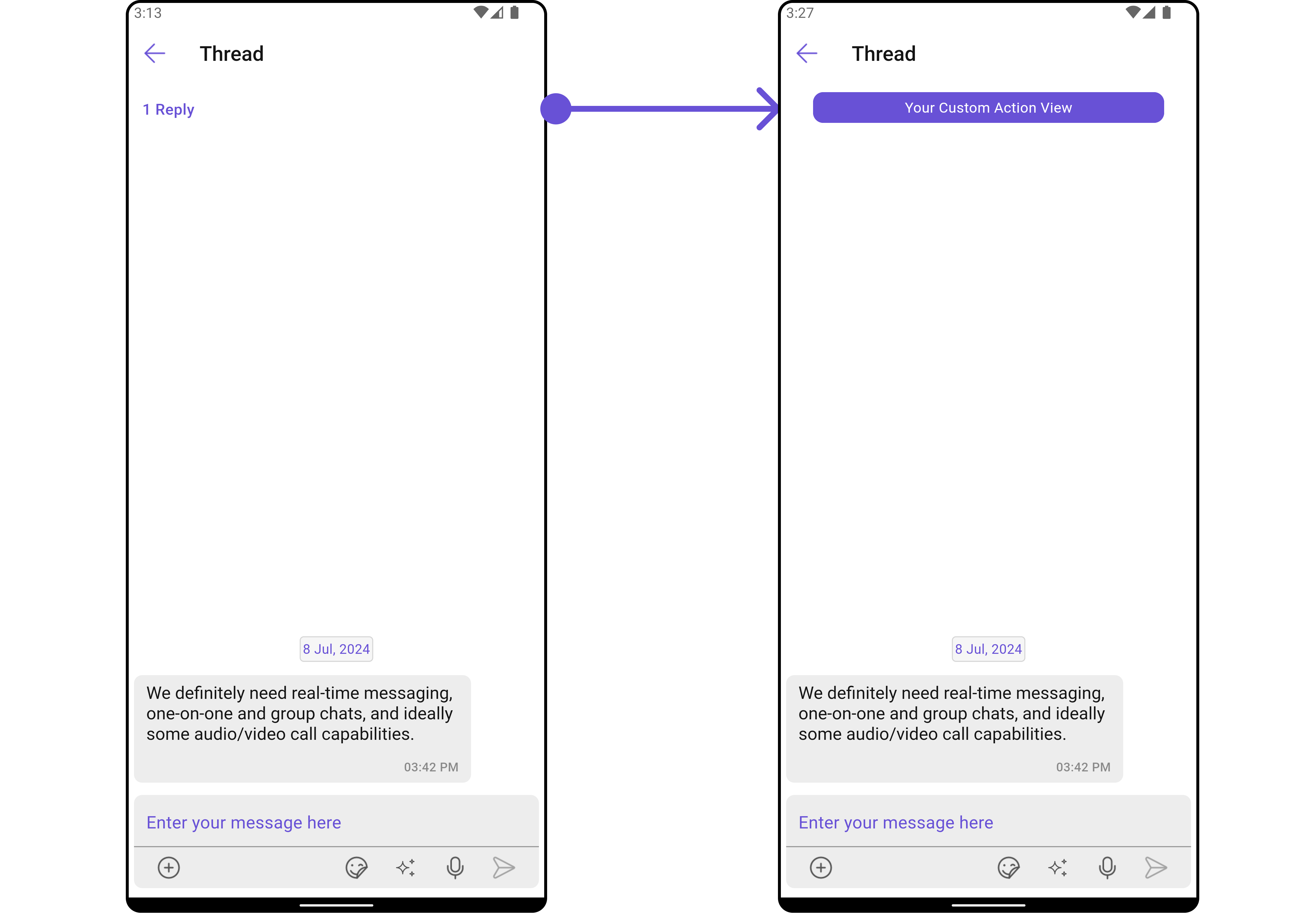
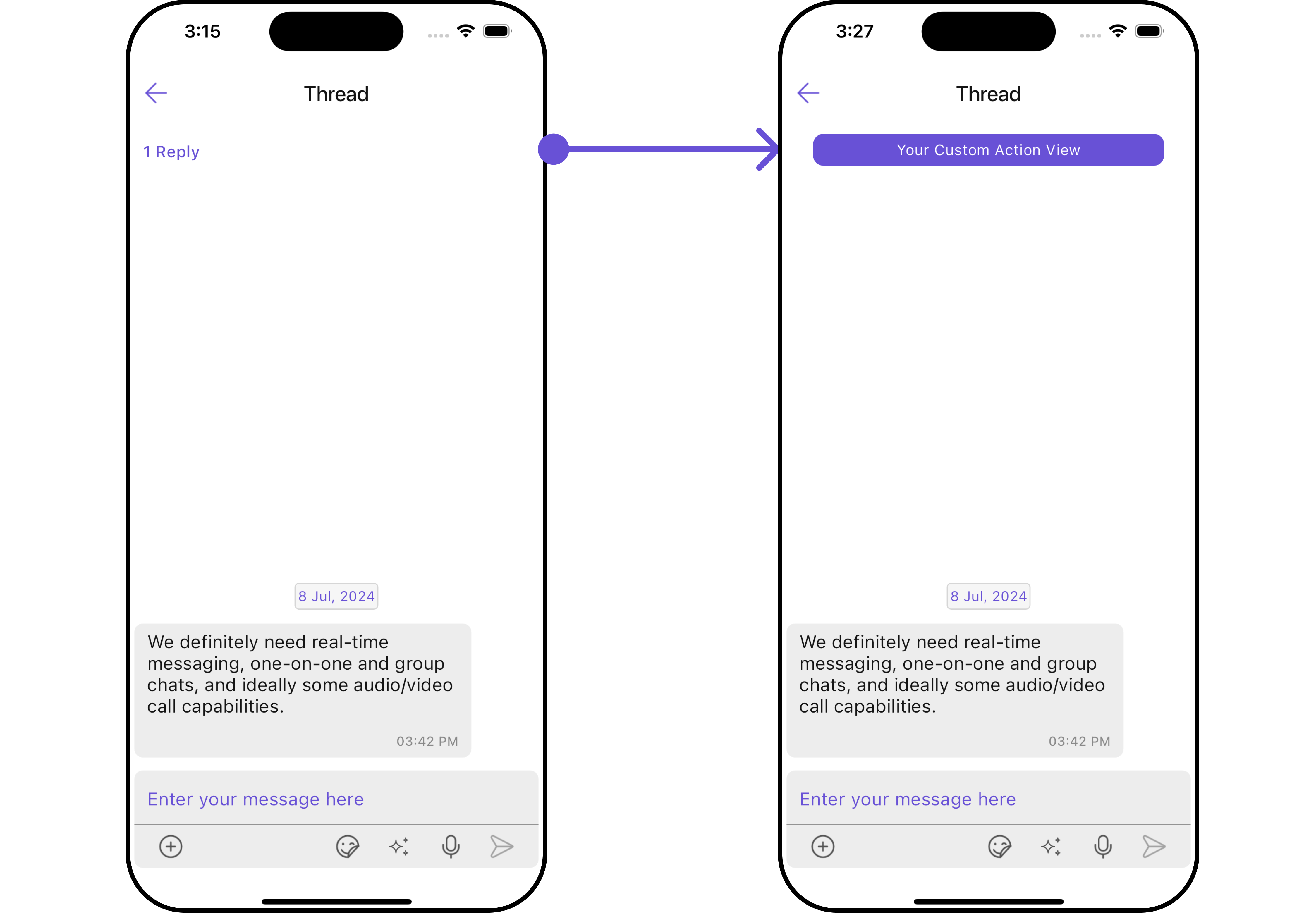
By utilizing themessageActionView method, you can assign custom actions to the parent message bubble widget inside the CometChatThreadedMessages Widget.
Example
Here is the complete example for reference:
- Dart
- Android
- iOS
MessageListView
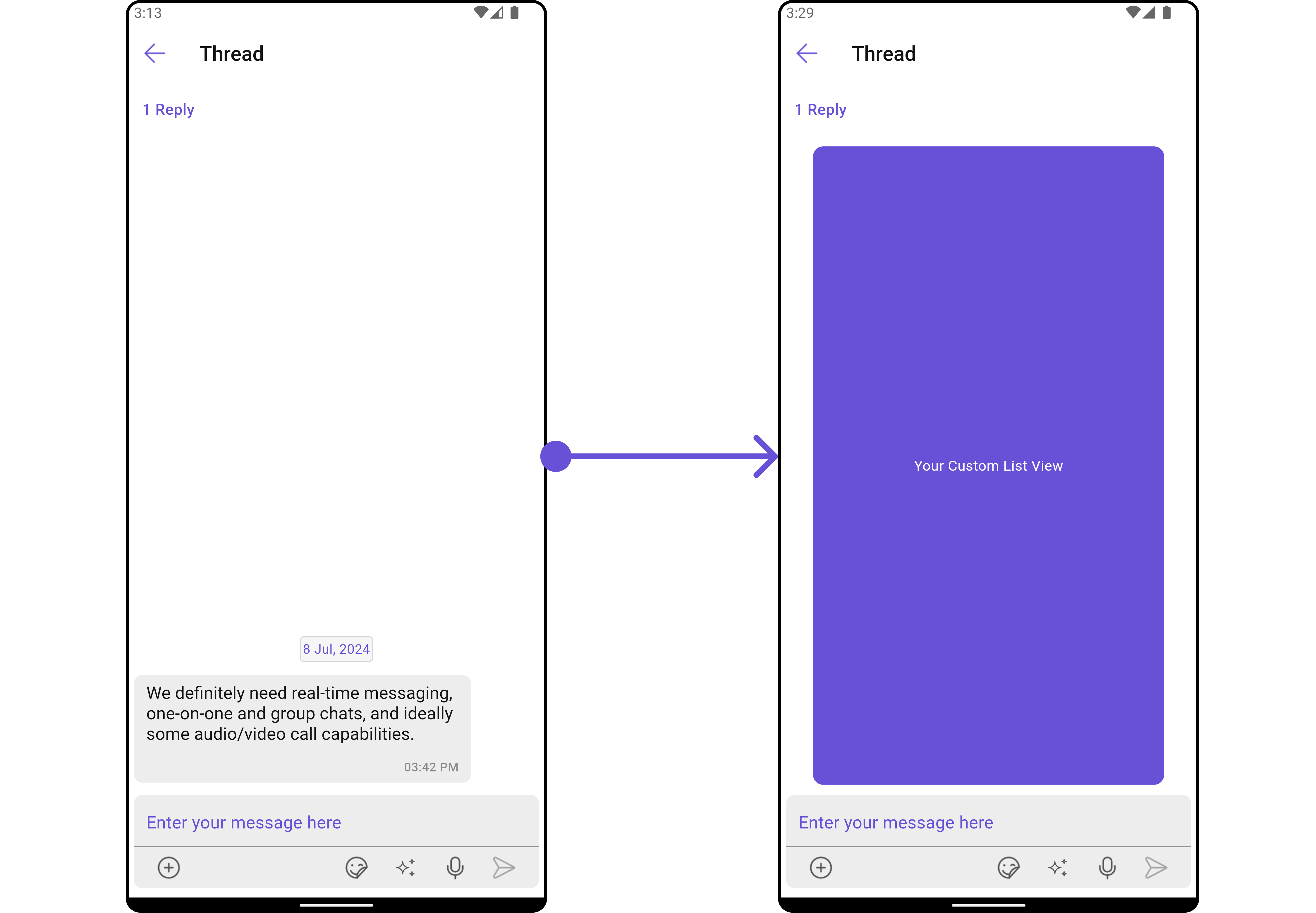
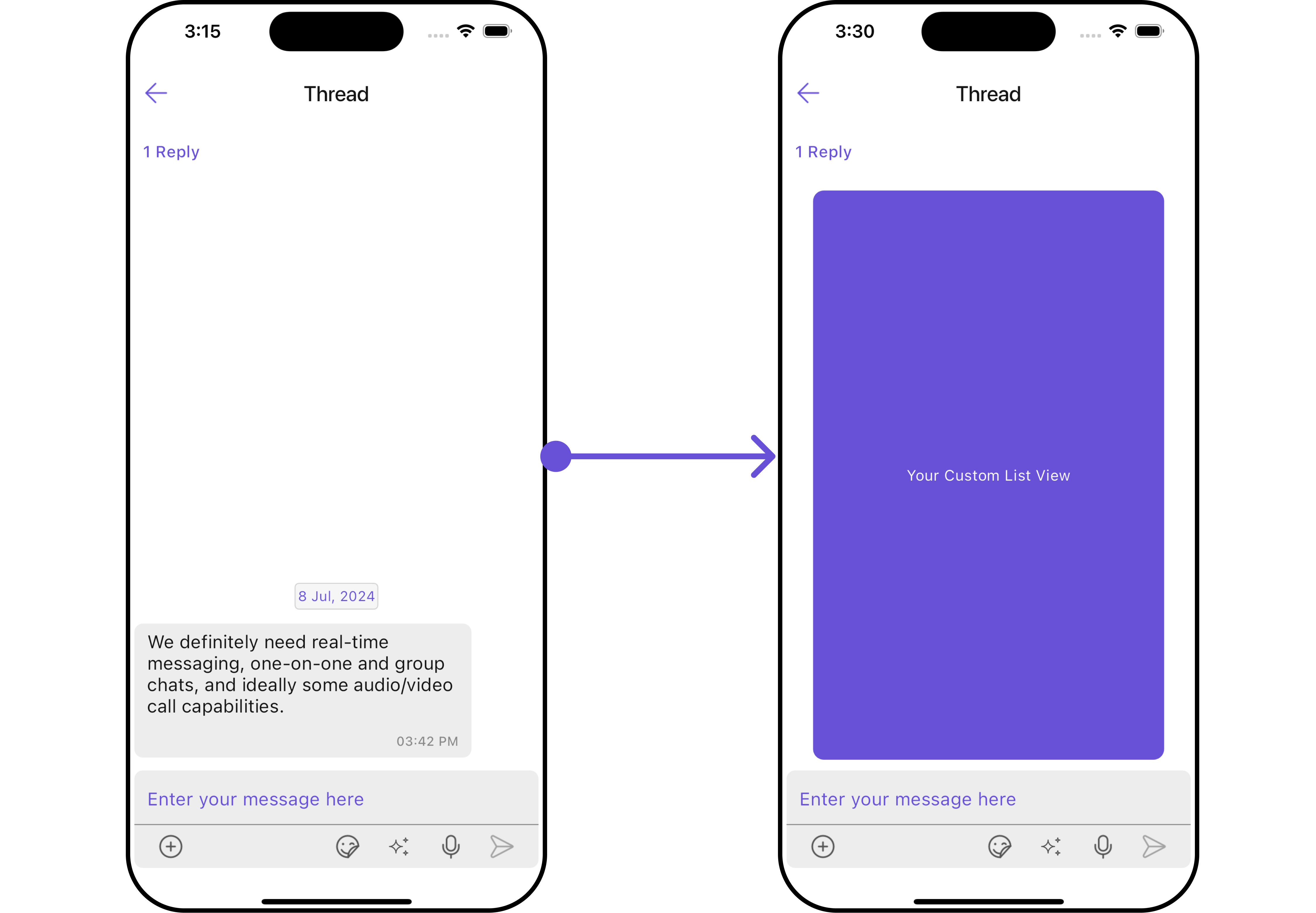
You can set your custom message list widget using themessageListView method. But keep in mind, by using this you will override the default message ListView functionality.
Example
Here is the complete example for reference:
- Dart
- Android
- iOS
MessageComposerView
You can set your custom Message Composer widget using themessageComposerView method. But keep in mind, by using this you will override the default message composer functionality.
Example
Here is the complete example for reference:
- Dart
Configuration
Configurations offer the ability to customize the properties of each individual widget within a Composite Widget. The ThreadedMessages is a Composite Widget, and it has a distinct set of configurations for each of its widgets as follows.MessageList
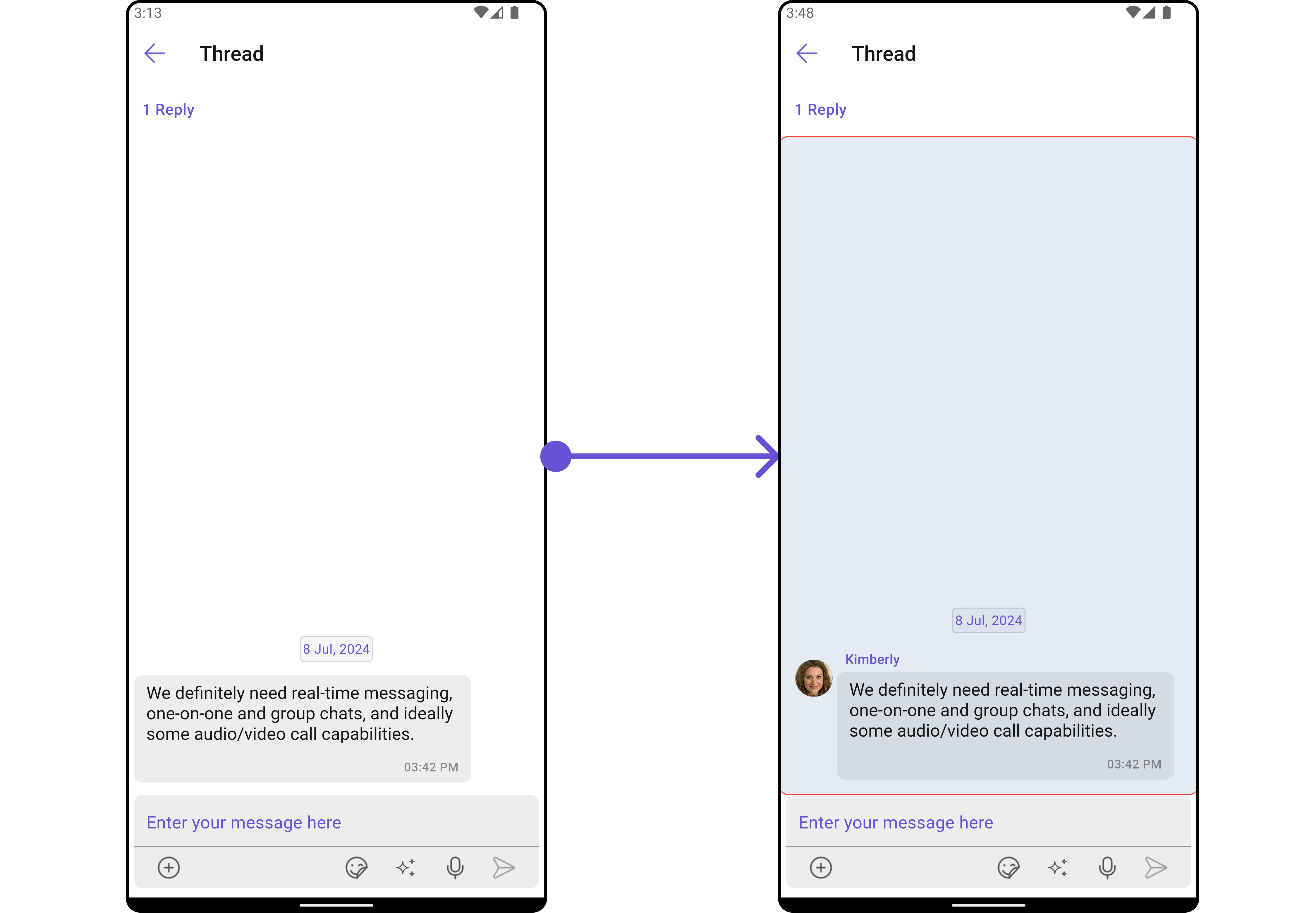
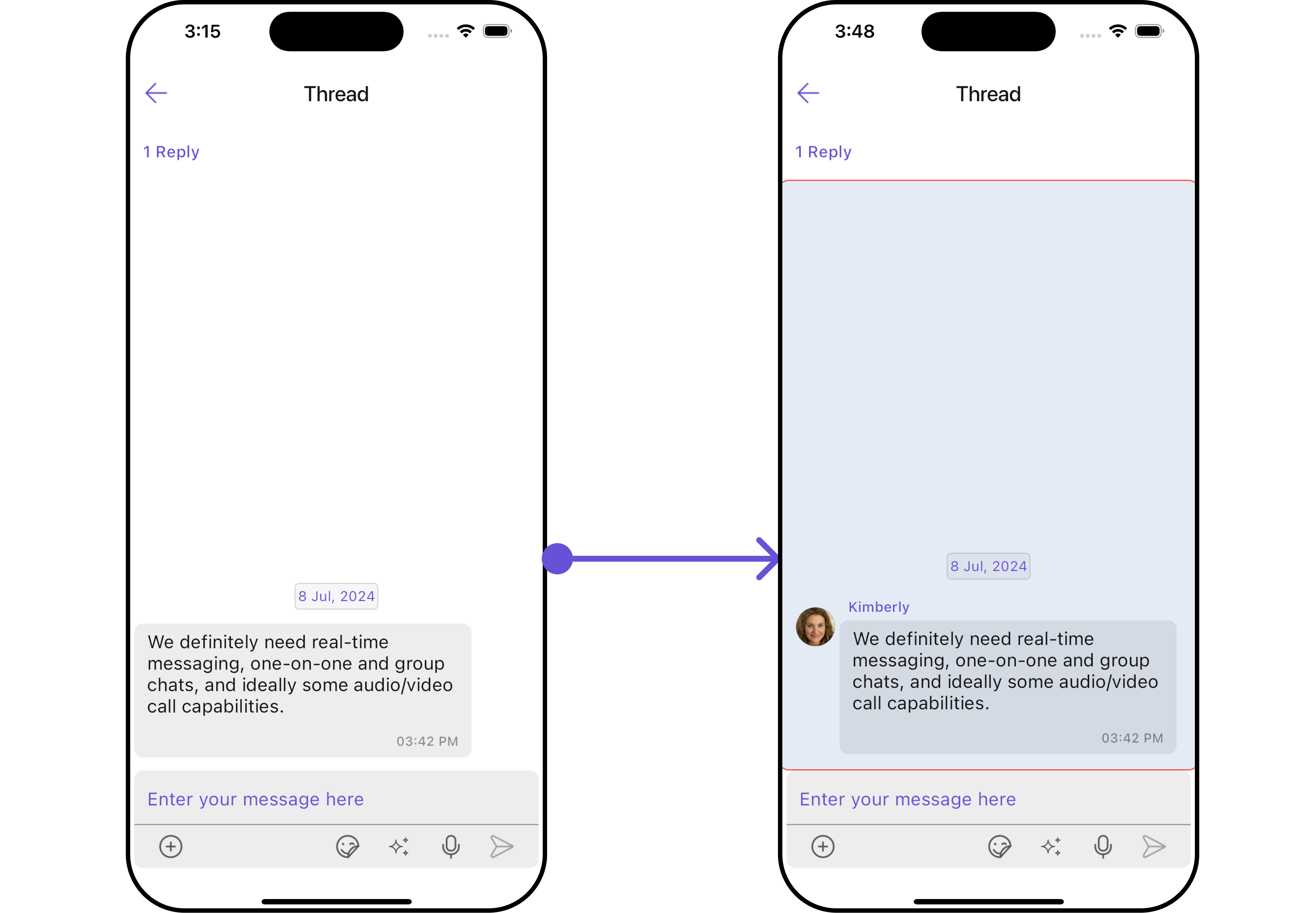
If you want to customize the properties of the MessageList Widget inside ThreadedMessages Widget, you need use theMessageListConfiguration object.
Example
Here is the complete example for reference:
- Dart
- Android
- iOS
MessageComposer
If you want to customize the properties of the MessageComposer Widget inside ThreadedMessages Widget, you need use theMessageComposerConfiguration object.
Example
Here is the complete example for reference:
- Dart
- Android
- iOS